
Occasionally, applications may not release network ports correctly after closing or encountering errors. This situation leads to conflicts when another application attempts to bind to the same port, often resulting in “port already in use” or similar errors.
This is a common scenario during development when restarting servers or after unexpected network interruptions.
This guide outlines methods for identifying the process occupying a specific port and terminating it, freeing the port for use on Windows and Linux-based systems.
Why Does This Happen?
Network applications listen for incoming connections on specific ports. Each port can typically only be actively bound by one process at a time on a given network interface.
When a process starts, it requests the operating system to assign it a port. If that process terminates abnormally or fails to release the port explicitly, the operating system might still consider the port allocated. To resolve this, the lingering process holding the port must be identified by its Process Identifier (PID) and then terminated.
Solutions for Terminating Processes by Port
Various command-line tools and approaches can be employed depending on the operating system and the available utilities.

Read: Identifying Processes Using Specific TCP/UDP Ports on Windows
Windows (Command Prompt / PowerShell)
These methods utilize built-in Windows command-line tools.
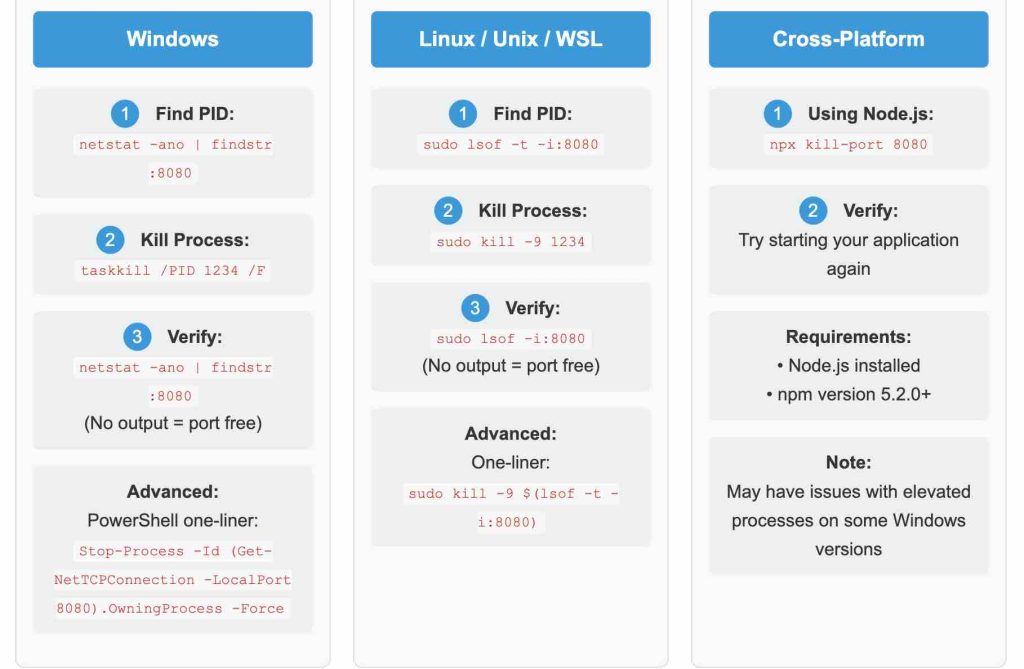
1. Using `netstat` and `taskkill` (Standard Method)
This is a common two-step process using standard Windows commands.
- Find the Process ID (PID): Open Command Prompt (
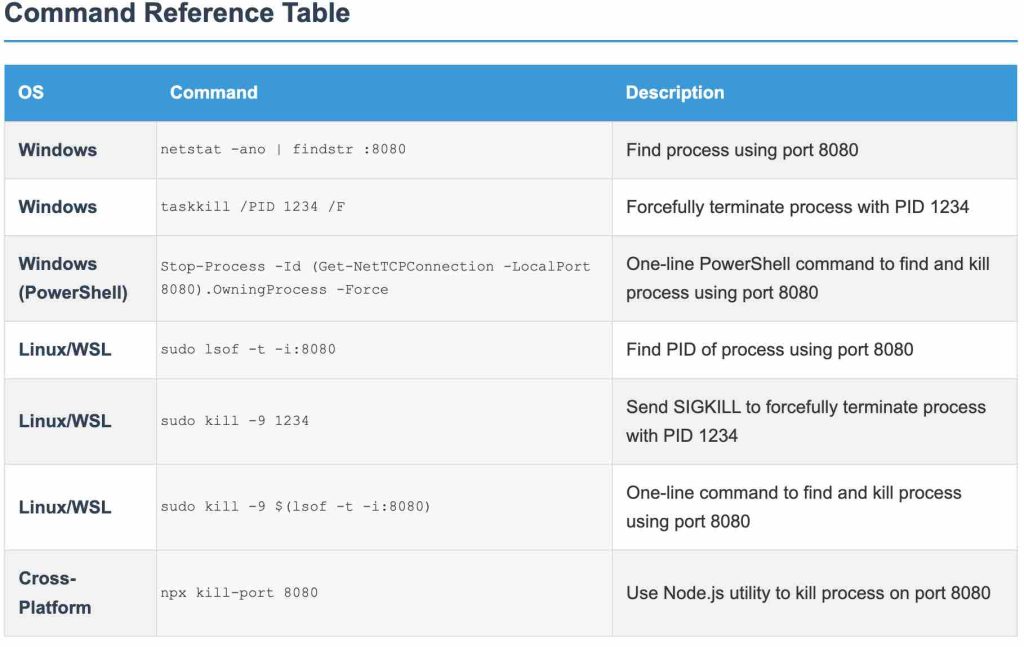
cmd.exe) or PowerShell. Running as Administrator might be necessary for some processes. Execute the following command, replacing <PORT_NUMBER> with the target port number:netstat -ano | findstr : <PORT_NUMBER>Alternatively, omitting the colon may also work:
netstat -ano | findstr <PORT_NUMBER>This command lists network connections (
-a), displays addresses and port numbers numerically (-n), and shows the owning process ID (-o). The output is filtered (findstr) to show lines containing the specified port.Example Output:
TCP 0.0.0.0:8080 0.0.0.0:0 LISTENING 18264`netstat -ano` Output Breakdown (Example) Proto Local Address Foreign Address State PID TCP 0.0.0.0:8080 0.0.0.0:0 LISTENING 18264 In this table, the PID is 18264.
- Terminate the Process: Use the PID found in the previous step with the `taskkill` command. The
/Fflag forcefully terminates the process.taskkill /PID <PID> /FReplace <PID>
with the actual Process ID number.Some shells, like Git Bash, might require escaping the slashes:
taskkill //PID //For using hyphens:taskkill -PID -F.
Read: How to Display Environment Variables in Windows Command Prompt
2. Using `tskill` (Alternative, e.g., for Git Bash)
If `taskkill` encounters issues in certain terminal environments like older versions of Git Bash, `tskill` can be an alternative.
- Find the PID using `netstat` as described above.
- Terminate the process using its PID:
tskill <PID>
3. Using PowerShell Native Cmdlets
PowerShell offers more integrated ways to achieve this.
- Using `Stop-Process` with PID: After finding the PID with `netstat`, you can use:
Stop-Process -Id <PID> -ForceIn some PowerShell versions,
killworks as an alias forStop-Process. - One-Liner using `Get-NetTCPConnection`: ( introduced in PowerShell 4.0 (Windows 8.1/Server 2012 R2 and later))
Stop-Process -Id (Get-NetTCPConnection -LocalPort <PORT_NUMBER>).OwningProcess -ForceOr an alternative structure:
Get-Process -Id (Get-NetTCPConnection -LocalPort <PORT_NUMBER>).OwningProcess | Stop-Process -ForceMake sure to specify the port numbers to the -LocalPort parameter. These commands directly find the process owning the specified local port and terminate it.
Linux / WSL (Windows Subsystem for Linux)
On Linux systems or within WSL, different commands are typically used.
1. Using `lsof` and `kill`
lsof (List Open Files) is a powerful utility for finding processes associated with files or network sockets.
- Find the PID: Use `lsof` to find the PID listening on the target port . `sudo` is often required.
sudo lsof -t -i: <PORT_NUMBER>The
-toption outputs only the PID, and-i:specifies the network port. - Terminate the Process: Use the `kill` command with the PID. The
-9signal (SIGKILL) forcefully terminates the process.sudo kill -9 <PID> - Combined One-Liner: These steps can be combined:
sudo kill -9 $(lsof -t -i: <PORT_NUMBER> )
2. Using `netstat` and `kill` (Alternative Linux Method)
While `ss` is often preferred on modern Linux, `netstat` might still be available or familiar.
- Find the PID:
sudo netstat -tulnp | grep LISTEN | grep :<PORT_NUMBER>Look for the PID in the output associated with the listening port.
- Terminate the Process:
sudo kill -9 <PID>

Read: How to kill and Find processes listening to port 3000 on Mac
Cross-Platform (Node.js based)
Using `npx kill-port`
If you have Node.js and npm (version 5.2.0 or higher) installed, the `kill-port` package provides a straightforward command.
npx kill-port <PORT_NUMBER>npx executes the package command without needing a global installation. This attempts to find and kill the process using the specified port.
Some reports indicate potential issues terminating processes with elevated privileges on certain Windows versions using this method, although others find it works successfully.
Automated Scripts and One-Liners
For repetitive tasks, scripting can be efficient.
1. Windows Batch File (`.bat`)
This script finds and kills a process listening on a specific port (e.g., 8080).
@echo off
for /f "tokens=5" %%a in ('netstat -aon ^| find ":8080" ^| find "LISTENING"') do taskkill /f /pid %%a
Replace 8080 with the desired port. Note the use of %%a in a batch file (use %a if running directly in the command line).
2. Windows Batch File (Interactive)
This creates an interactive script prompting for the port and PID.
@echo off
set /P port="Enter port : "
echo Showing process running with port %port%
netstat -ano | findstr ":%port%"
set /P pid="Enter PID to kill : "
taskkill /pid %pid% /f
set /P exit="Press any key to exit..."
Save this as a .bat file (e.g., killport.bat) and run it.
3. PowerShell Function
For PowerShell 7+, a function can be added to the $PROFILE file for easy reuse.
function killport([parameter(mandatory)] [string] $uport){
    if($upid = (Get-NetTCPConnection -LocalPort $uport -ErrorAction Ignore).OwningProcess){kill $upid}
}
After adding this to your profile and reloading it, you can run killport <PORT_NUMBER>.
Read: How to Access Serial Ports (COM & ttyS) in Windows Subsystem for Linux (WSL1 & WSL2)
4. Git Bash One-Liner using `tskill`
tskill $(netstat -ano | findstr LISTENING | findstr :<PORT_NUMBER> | sed -r 's/^(\s+[^\s]+){4}(\d*)$/\2/')This uses `sed` to extract the PID from `netstat` output and passes it to `tskill`.
Graphical Tools (Windows)
For users preferring a graphical interface on Windows:
- Resource Monitor: Built into Windows (run
resmon.exe). Navigate to the ‘Network’ tab, and look under ‘Listening Ports’ to find the process and its PID. You can right-click the process to end it. - CurrPorts: A third-party utility specifically designed for viewing and managing network connections and ports.
Verification
After attempting to terminate the process, you can verify its success by:
- Re-running the `netstat` or `lsof` command used initially. The entry for the specific port and PID should no longer appear.
- Attempting to start the application that previously failed due to the port conflict. It should now be able to bind to the port successfully.
Key issues
- Administrator Privileges: Terminating processes, especially system-related ones or those started by other users, often requires running the command prompt or PowerShell as an Administrator (elevated privileges). Likewise, `sudo` is typically needed for `lsof` and `kill` on Linux.
- Force Termination: Using flags like
/F(taskkill) or-9(kill) forcefully terminates the process. This doesn’t allow the application to shut down gracefully, which could potentially lead to data loss in some cases, though it’s often necessary for stuck processes. - System Processes: Critical system processes (often PID 0 or other low numbers on Windows) cannot and should not be terminated, as this can destabilize the operating system. Tools will usually prevent this.
- Automatic Restarts: Some applications are configured as services that automatically restart if terminated. If the process immediately reappears after being killed, you may need to stop or disable the corresponding service.
- Shell Variations: Command syntax or the need for escape characters (e.g.,
//instead of/with `taskkill` in some Git Bash versions) can vary between different command-line shells. - Tool Availability: Ensure necessary tools like `lsof` or Node.js/npm (for `npx kill-port`) are installed on your system.
Conclusion
When a network port remains unexpectedly occupied, identifying and terminating the responsible process is crucial for resolving conflicts. Whether using standard Windows tools like `netstat` and `taskkill`, PowerShell cmdlets, Linux utilities like `lsof` and `kill`, or cross-platform solutions like `npx kill-port`, several effective methods exist. Choosing the appropriate command based on the operating system and available tools allows developers and administrators to quickly free up ports and restore application functionality.


