
xcrun: error: invalid active developer path (/Library/Developer/CommandLineTools), missing xcrun at: /Library/Developer/CommandLineTools/usr/bin/xcrunThis indicates an issue with the system’s ability to locate essential components of the Xcode Command Line Tools (CLT). This situation often arises after operating system upgrades (affecting versions from Mojave through Catalina, Big Sur, Monterey, Ventura, and potentially Sonoma) because the update process can disrupt the previously configured path to these tools.
This article outlines the reasons behind this error and provides several methods to restore functionality.
Why Does This Error Occur?
The core issue stems from the macOS update process potentially invalidating the active path set for the Xcode Command Line Tools. These tools, including utilities like `git`, `make`, and compilers, rely on the `xcrun` command to locate the necessary binaries and SDKs.
When the system updates, the link to `/Library/Developer/CommandLineTools` (the default location for standalone CLT) or the tools embedded within the Xcode application (`/Applications/Xcode.app/Contents/Developer`) can become broken or outdated. The error message explicitly states that `xcrun` cannot be found at the expected location within the configured developer path.
Additionally, sometimes after an update, accepting a new Xcode software license agreement is necessary before the tools become operational again. In environments with multiple Xcode versions installed, the system might also lose track of which version’s tools should be active.
Read: How to Fix `dyld: Library not loaded: icu4c` Errors on macOS After Homebrew Operations
Solutions to Restore Command Line Tools
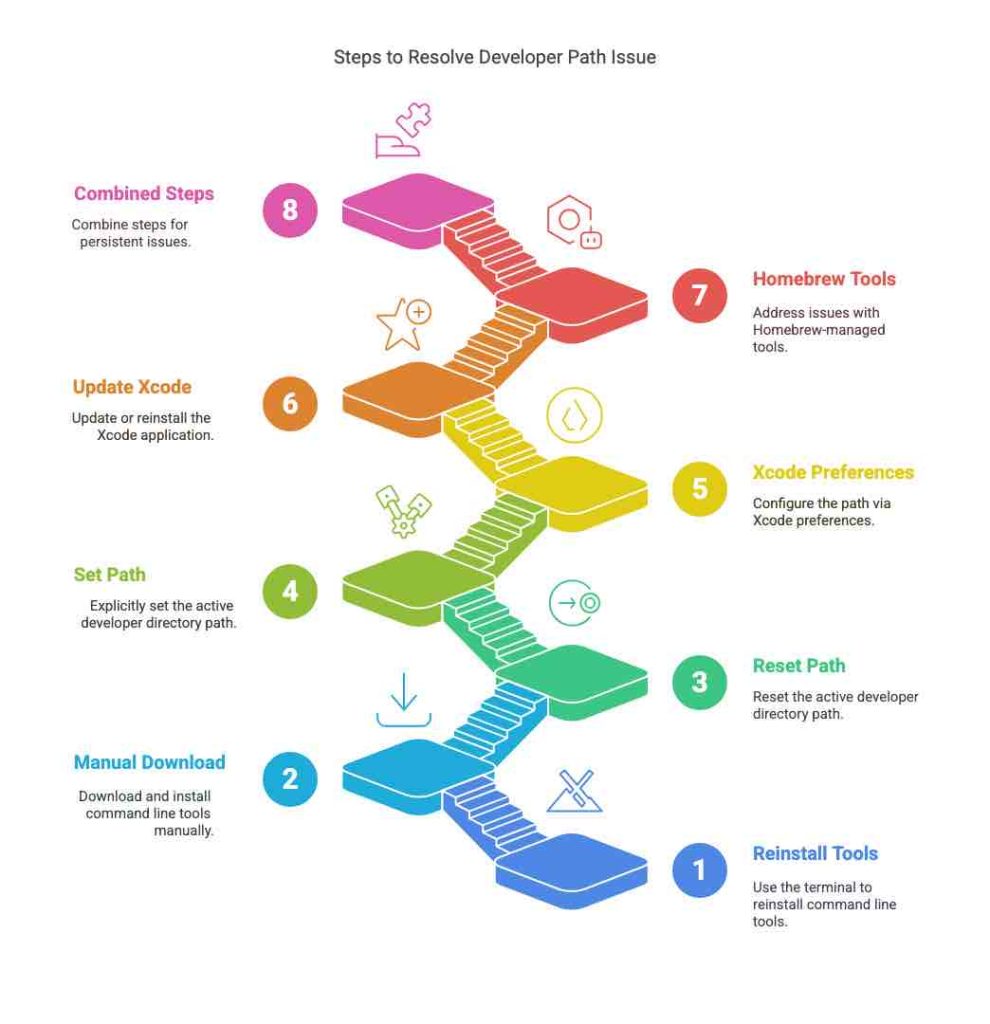
Several approaches can be employed to rectify this developer path issue. Choose the method that best suits your setup and preferences.
Read: How to Fix the ‘NSUnknownKeyException: key value coding-compliant’ Runtime Error in Xcode
Solution 1: Reinstall Command Line Tools via Terminal
This is often the quickest method to try. Open your Terminal application and execute the following command:
xcode-select --installThis command triggers a system prompt asking if you want to install the tools. Confirming will initiate the download and installation process. The output in the terminal typically confirms the request:
xcode-select: note: install requested for command line developer toolsAfter the installation completes, it might be necessary to restart your Terminal application or even reboot your Mac for the changes to take effect fully, particularly noted with macOS Ventura.
In some cases, especially after recent updates (like Ventura), you might first encounter a software license agreement prompt in the terminal. Press the spacebar to scroll through the text and type `agree` when prompted. If you miss this, you can trigger it again using:
sudo xcodebuild -licenseIf the `xcode-select –install` command results in an error stating “Software not found on server,” proceed to Solution 2.
Solution 2: Manually Download and Install Command Line Tools
When the automatic installation fails, manually downloading the tools from the Apple Developer website is the recommended alternative.
- Navigate to the Apple Developer Downloads page (requires Apple ID login).
- Search for “Command Line Tools for Xcode”.
- Select the version matching your macOS version (e.g., “Command Line Tools for Xcode 14.2” or “xcode 14.2”). Choose stable releases unless you specifically need beta versions.
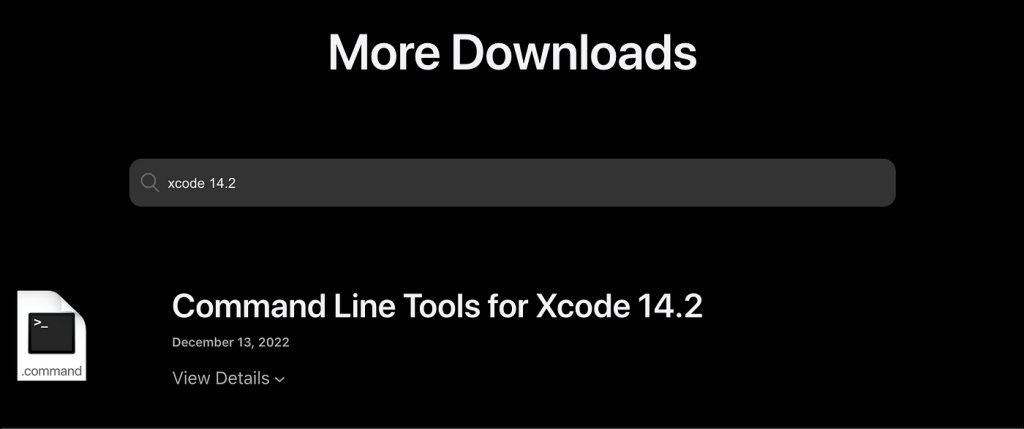
- Download the `.dmg` file.
- Open the downloaded DMG and run the installer package inside.
After manual installation, a system reboot might be required to complete the setup and break potential installation prompt loops.
This method ensures you have the correct version directly installed, bypassing potential issues with the software update server.
Solution 3: Reset the Active Developer Directory Path
If the tools are installed but the system path is incorrect, resetting it might resolve the issue. This often works well after OS upgrades like Mojave to Catalina or on systems where Xcode itself is installed.
Execute the following command with administrator privileges:
sudo xcode-select --resetThis command unsets any custom developer directory path, allowing the system to find the tools via the default search mechanism. After running this, you might need to accept the Xcode license (see Solution 1) using `sudo xcodebuild -license`.
Solution 4: Explicitly Set the Active Developer Directory Path
If resetting doesn’t work, or if you have multiple versions of Xcode/CLT installed, you can explicitly tell the system where to find the tools.
To point to the standalone Command Line Tools (if installed separately):
sudo xcode-select -s /Library/Developer/CommandLineToolsTo point to the tools embedded within the main Xcode application (preferred if you use Xcode regularly, as updates are handled via the App Store):
sudo xcode-select -s /Applications/Xcode.app/Contents/DeveloperAdjust the path if your Xcode application (e.g., `Xcode-beta.app`) is located elsewhere or named differently.
Solution 5: Configure Path via Xcode Preferences
If you have the Xcode application installed, you can often fix the path issue through its graphical interface:
- Open Xcode.
- Go to Xcode Menu -> Preferences (or Settings in newer macOS versions).
- Select the “Locations” tab.
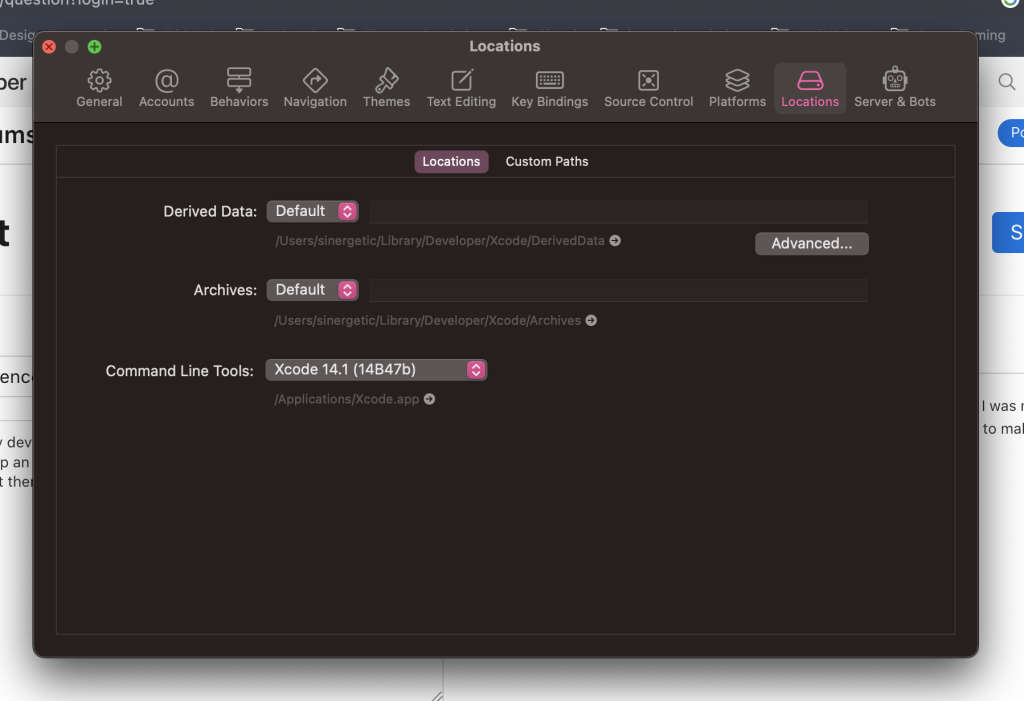
- Ensure the “Command Line Tools” dropdown menu has a valid Xcode version selected. If it’s empty, select the appropriate version from the list.
This action is equivalent to using the `xcode-select -s` command.
Solution 6: Update or Reinstall Xcode Application
Sometimes, the issue might be with an outdated Xcode installation itself.
- Check the Mac App Store for updates to Xcode.
- If issues persist, consider uninstalling the existing Xcode application completely and then reinstalling the latest version from the App Store.
This ensures that both Xcode and its embedded command-line tools are current and correctly registered with the system.
Solution 7: Address Homebrew-Managed Tools
If you primarily manage tools like Git using the Homebrew package manager, the issue might be related to its configuration or packages needing an update after the OS upgrade.
Try updating Homebrew and its packages:
brew update
brew upgrade
Alternatively, to ensure you are using the Homebrew-provided Git instead of the one potentially linked to the broken CLT path, you can try reinstalling it via Homebrew:
# Optional: Uninstall existing brew git first
# brew uninstall git

# Update brew and install git
brew update
brew install git
Verify which Git installation is being used:
which gitA typical Homebrew path would be `/usr/local/bin/git` or `/opt/homebrew/bin/git` on Apple Silicon.
Solution 8: Combined Steps for Persistent Issues
For stubborn cases, particularly install loops reported on macOS Monterey, a combination of steps might be necessary:
- Force remove the potentially corrupted CommandLineTools directory:
sudo rm -rf /Library/Developer/CommandLineTools - Trigger the reinstallation:
xcode-select --install(Confirm the GUI prompt)
- Explicitly set the path again after installation:
sudo xcode-select -switch /Library/Developer/CommandLineTools
Verification
After applying one of the solutions, verify that the issue is resolved by opening a new Terminal window or tab and attempting to use the previously failing command, such as:
git statusor checking the Git version:
git --versionIf the command executes without the `xcrun: error`, the Command Line Tools path has been successfully restored.
Important Considerations
- Administrator Privileges: Many commands (`sudo xcode-select –reset`, `sudo xcode-select -s`, `sudo xcodebuild -license`, `sudo rm -rf`) require administrator (`sudo`) privileges.
- Restart Applications: After fixing the path, restart Terminal sessions and any Integrated Development Environments (IDEs) like VS Code, PHPStorm, PyCharm, IntelliJ, or tools like Sourcetree that depend on command-line Git.
- Download Size: Installing the full Xcode application is a large download (~12GB+), while the standalone Command Line Tools are significantly smaller (~500MB-1GB+). If you don’t need the full Xcode IDE, installing only the CLT (Solution 1 or 2) is more efficient.
- Homebrew Users: If using Homebrew, ensure it’s updated (`brew update`) after fixing the CLT, as packages might rely on it.
- SVN Users: If Subversion (`svn`) stops working after an update (giving an error that Xcode no longer provides it), you may need to install it separately using Homebrew: `brew install svn`.
- IDE Path Settings: In some IDEs (like IntelliJ), you might need to manually verify or set the path to the Git executable in the settings (e.g., `File | Settings | Version Control | Git`), potentially pointing it to `/usr/bin/git` or the Homebrew path if used.
- System Permissions: On older systems like Catalina, ensure Xcode has Full Disk Access in System Preferences -> Security & Privacy -> Privacy -> Full Disk Access if encountering permission-related issues.
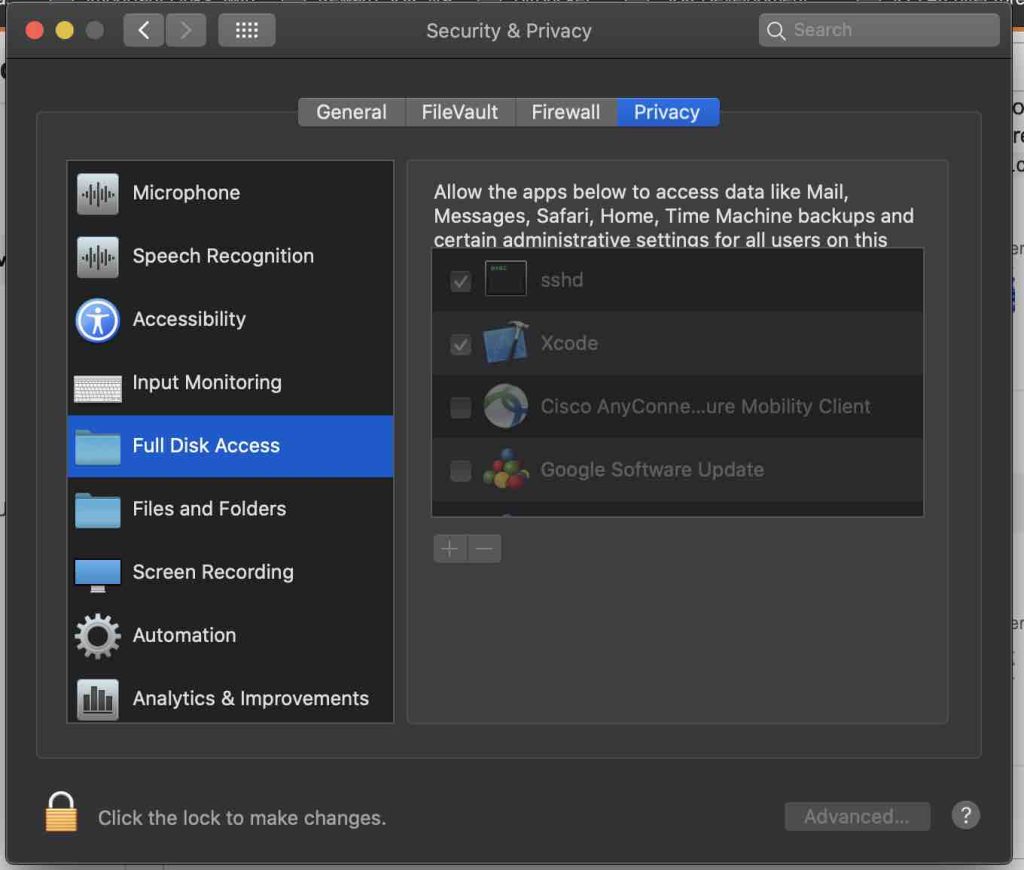
Screenshot
Conclusion
The `xcrun: error: invalid active developer path` error on macOS is a common annoyance following OS updates, primarily caused by a disrupted link to the Xcode Command Line Tools.
Fortunately, it’s usually resolvable by reinstalling the tools using `xcode-select –install`, downloading them manually from the Apple Developer site, or resetting/correcting the active developer path using `xcode-select` commands. For those using the full Xcode IDE, ensuring it’s updated and correctly selected in preferences is key.


